
Click fraud
Click Fraud Detection: How to Recognize and Evidence Suspicious Clicks
Suspicious clicks are easy to suspect and hard to prove. Learn to compare traffic with baselines, rule out ordinary causes and document a case Google can review.
No setting makes a campaign immune to bad clicks. See how Google's filtering, your own campaign controls and outside tools fit together, and where each one stops working.
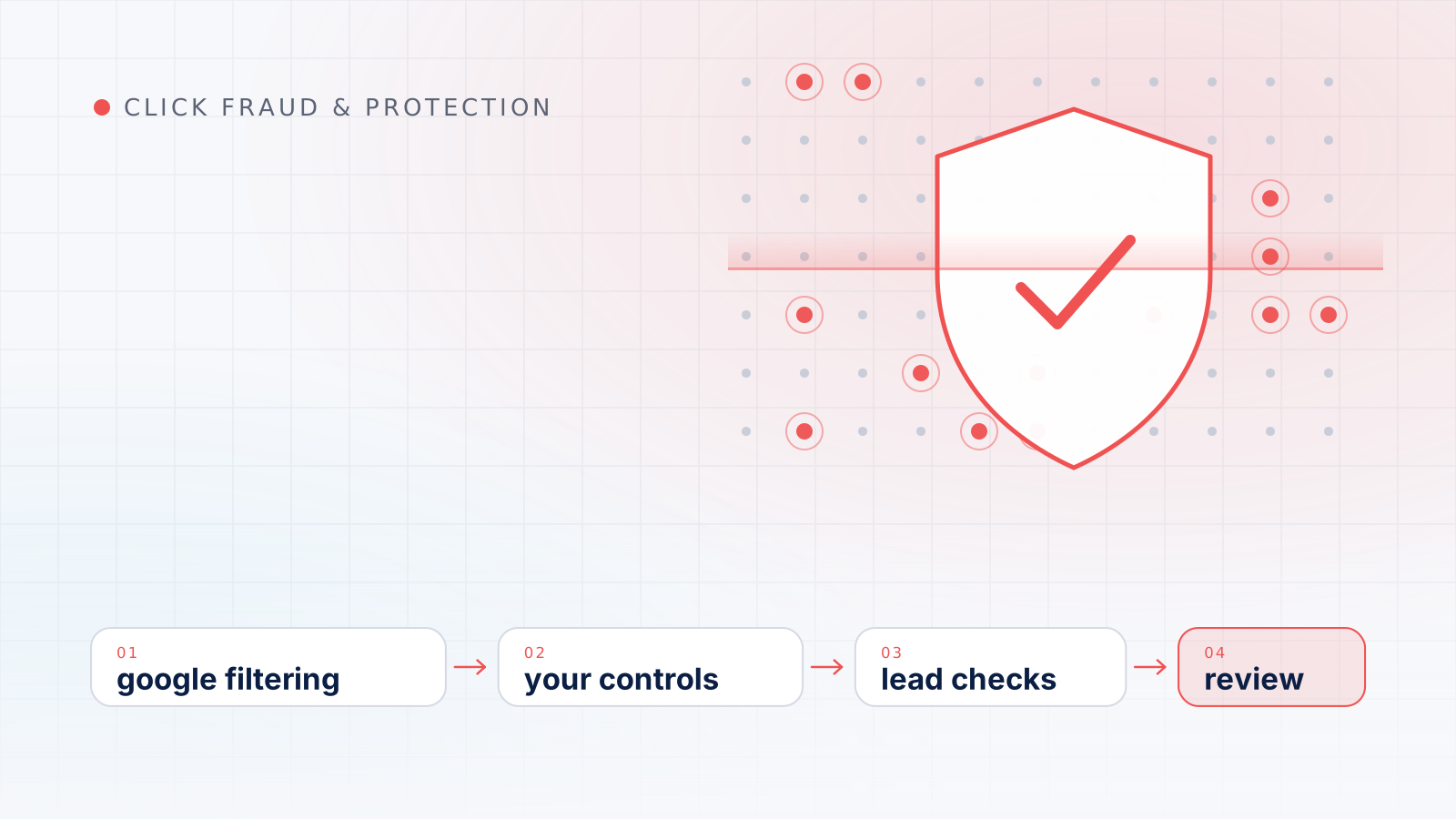
Invalid click protection is the combination of Google’s automatic filtering, the campaign settings you control and, if you choose, outside monitoring tools, used together to reduce how much you pay for clicks that carry no genuine interest. No single layer stops everything, so realistic protection means limiting exposure, checking what gets through and asking Google to review the rest.
This guide explains what each layer can and cannot do, walks through the Google Ads controls that matter (with their current limits, including the cap on IP exclusions), shows how to keep junk leads from corrupting your conversion data, and sets out how to judge third-party click fraud protection services without taking their claims on trust. A checklist table near the end pulls it together.
It helps to separate three layers, because they do different jobs.
The word “protection” suggests a wall. A better picture is a filter with several stages, each catching something the others miss and none catching everything. It also pays to keep perspective: much underperforming spend comes from targeting and structure rather than fraud, which is why a review of avoidable Google Ads spend often delivers more than any fraud tool.
You don’t switch Google’s filtering on; it applies to every account. What you can do is check its results:
If you believe invalid activity slipped through, Google accepts investigation requests through its Click Quality Form for activity within the last 60 days. Our guide to Google’s invalid click columns, credits and reviews explains what each figure represents and what a request should include.
These settings don’t identify bad clicks. They narrow the places, people, times and searches your ads are exposed to, which is usually the most effective protection an advertiser has.
IP exclusions stop your ads from being shown to specific addresses. Google’s help page on excluding IP addresses sets out the current rules:
IP exclusions in Google Ads work best for a small number of stable, known sources, such as your own office, your agency or a partner’s test environment. They work poorly against sources that change address frequently. And because one public address can sit in front of many devices, an overly broad exclusion can hide your ads from genuine customers on the same office, campus or mobile network. The per-campaign cap also means an ever-growing blocklist is not a sustainable strategy.
On the Display Network, YouTube and search partner sites, where your ad appears matters as much as who sees it. Google lets you exclude placements at campaign, ad group or account level by entering specific URLs, apps or video IDs. Account-level placement exclusions now also apply to the Search partner network, including Performance Max, App, Search, Shopping and Smart campaigns. Shared exclusion lists are subject to a standard limit of 65,000 exclusions per list. Google’s invalid traffic guidance also points to content suitability settings for filtering out content types or placements that don’t fit your goals.
Mobile apps deserve particular attention because of accidental taps and app-specific schemes; our guide to mobile and in-app ad traffic quality covers how to review them.
Search campaigns can reach beyond Google Search. When you create a Search Network campaign, search partners are included by default, and you can turn them off at any time by unchecking “Include Google search partners” in the campaign’s network settings. Separately, Display Expansion extends a Search campaign onto the Display Network through the “Include Google Display Network” option. That help page also describes upcoming changes to how spend is prioritized across Google Search, search partners and the Display Network, so recheck these settings periodically.
Neither network is inherently bad. Segment performance by network before deciding. If search partner or Display traffic shows weak engagement and poor lead quality over a meaningful period, narrowing your networks is a legitimate, low-risk choice.
Location settings are a frequent source of “suspicious” clicks from outside your area. Google’s advanced location options include “Presence or interest”, the default and recommended option, which reaches people in or regularly in your targeted locations as well as people who have shown interest in them, and “Presence”, which shows ads only to people likely to be located, or regularly located, there. Location exclusions use a “Presence” setting by default.
Businesses that serve only a defined area usually benefit from choosing “Presence” and excluding areas they cannot serve. Our article on Google Ads location targeting options covers the settings and location reports in detail.
If clicks at certain hours never produce customers, an ad schedule limits when ads can show. According to Google’s page on bid adjustments, device bid adjustments range from -100% to +900%, and a -100% adjustment opts a campaign out of a device type. Smart Bidding changes the picture: manual bid adjustments generally aren’t applied, several automated strategies accept only a -100% device adjustment, and Target CPA uses device adjustments to modify the CPA target rather than the bids. Ad schedules, however, are strictly respected. Use these settings to reflect sustained performance differences, not as a reaction to one bad night.
Irrelevant searches create clicks that are genuine but useless, and in aggregate they can look like fraud. Google’s invalid traffic guidance lists adding negative keywords, which exclude specific search terms, among the steps advertisers can take. Review your search terms regularly and add negatives for queries that will never convert.
For lead-generation advertisers, form spam can do more damage than the clicks themselves. If junk submissions are counted as conversions, automated bidding treats them as successes and may seek out more traffic like them.
Google’s guidance on managing invalid traffic suggests securing website lead forms with tools such as reCAPTCHA and server-side validation, and considering a double opt-in process that asks people to confirm by clicking a link in a verification email. These steps make automated submissions harder without adding much friction for real prospects.
The stronger fix is to tell Google which leads were real. Offline conversion imports let you measure what happens offline after an ad click or call, such as a signed contract or phone sale, by storing the Google Click ID (GCLID) with each lead and later sending the outcome back to Google Ads. Google describes enhanced conversions for leads as an upgraded version that supplements those identifiers with user-provided data, such as email addresses, to improve accuracy and bidding performance. When bidding learns from qualified outcomes instead of raw form fills, junk traffic stops looking like success.
Most services follow a similar pattern. A script on your site records information about each visit that arrives from an ad, such as network origin, device and browser details, timing and on-page behavior. A scoring model or rule set flags visits that look automated or excessively repetitive. Many services can then add IP exclusions to your campaigns automatically or prepare reports to support a refund request.
Treat confident percentages and dramatic dashboards with caution. A credible provider will be clear about what its product cannot see. This publication does not recommend or endorse any specific provider.
The review cadences below are suggestions; adjust them to your spend and risk.
| Control | What it does | Main limit | Suggested review |
|---|---|---|---|
| Invalid clicks column and Invalid traffic card | Shows what Google filtered and credited | Aggregated, no visitor detail | Monthly |
| Billing adjustments | Shows credits for invalid activity found after billing | Arrive after the fact | Monthly |
| IP exclusions | Stops ads showing to specific addresses | 500 per campaign; shared addresses | When known sources change |
| Placement exclusions | Blocks named sites, apps and videos | New placements appear constantly | Monthly for Display and video |
| Network settings | Limits search partner and Display reach | Can remove traffic that converts | After enough data per network |
| Location options and exclusions | Focuses ads on people in your area | “Presence or interest” is the default | At setup and after changes |
| Ad schedule and device adjustments | Limits hours and devices | Smart Bidding ignores most manual adjustments | Quarterly |
| Negative keywords | Blocks irrelevant searches | Needs ongoing search-term review | Weekly to monthly |
| Form protection | Filters automated submissions | Persistent spammers adapt | When spam appears |
| Offline conversion imports | Teaches bidding which leads were real | Requires disciplined lead records | Continuous |
Every protective setting has a cost. Each exclusion or narrowed network removes some genuine customers along with whatever you meant to block, so apply changes in response to evidence rather than anxiety.
When something looks wrong, follow a structured method for detecting click fraud before changing settings, and examine individual suspicious sessions to see what the traffic actually did. If performance has shifted suddenly across a campaign, run a broader campaign diagnosis first, because tracking breaks, bid changes and competition explain more drops than fraud does. If you need a refresher on the basics, see how Google Ads records and bills each click.
Finally, record every protective change with a date and a reason. Without that note, you cannot tell a few weeks later whether an exclusion helped, hurt or simply coincided with something else.
Keep reading
Click fraud
Suspicious clicks are easy to suspect and hard to prove. Learn to compare traffic with baselines, rule out ordinary causes and document a case Google can review.
Google Ads
Google filters most invalid activity before you pay. Here are the definitions, the reporting columns, the credit process and what Google will and will not tell you.
Google Ads
Location settings decide who can see and click your ads. Learn how Google estimates location, why out-of-area clicks happen and how to set targeting on purpose.