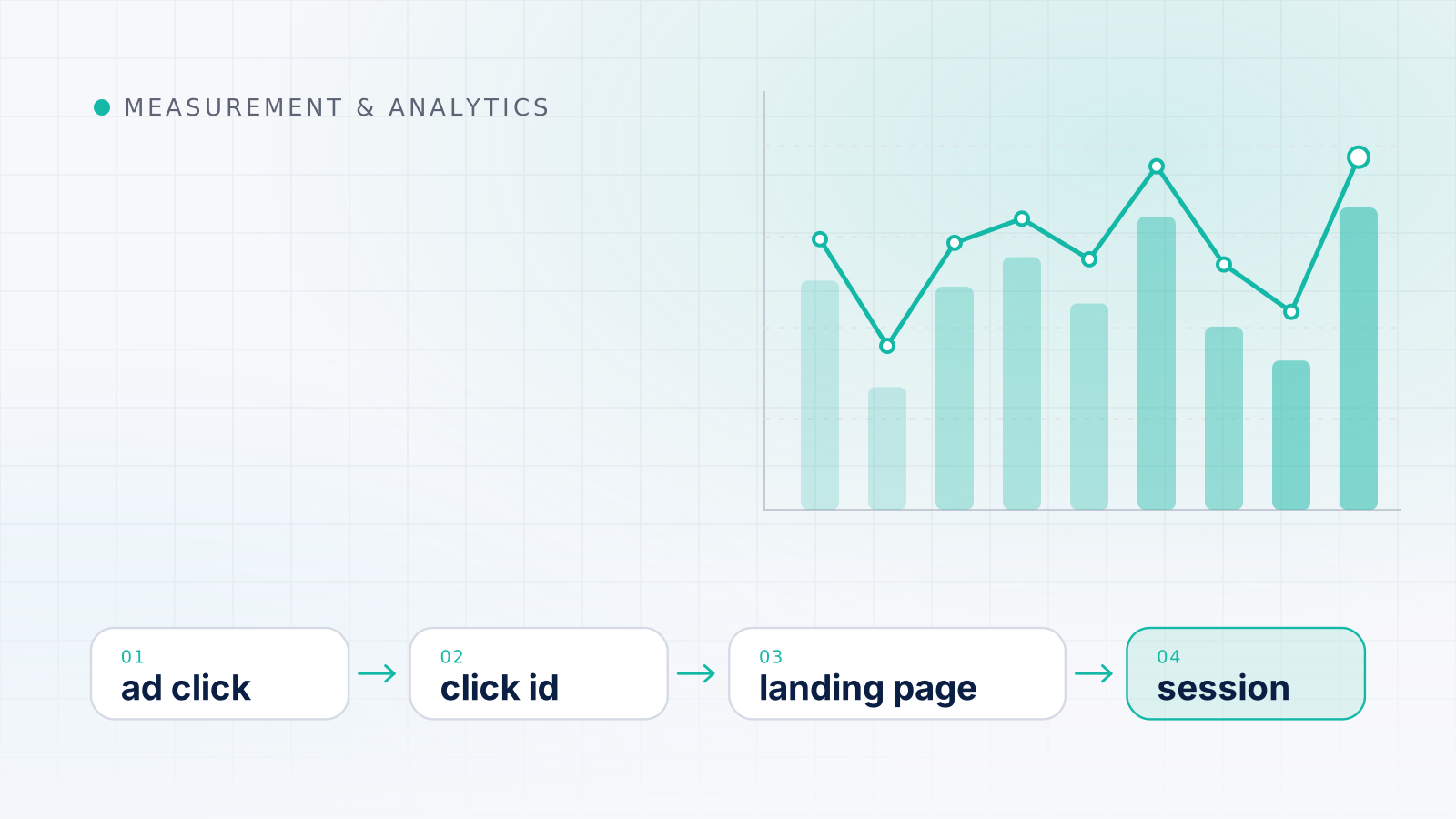
Ad click tracking is the chain of steps that records a click in the ad platform and carries information about it to your website, so that analytics and conversion tags can tie the visit back to the right campaign. In Google Ads, that chain usually depends on auto-tagging, which adds a click identifier called gclid to the landing page URL, plus any tracking templates or UTM parameters you add yourself.
This guide follows a single click from the ad to the analytics report, covering auto-tagging, tracking templates, parallel tracking, UTM tags and account linking. It then lists Google’s reasons why clicks and sessions differ, the privacy changes that affect click identifiers, and a tracking health checklist.
The journey of a single ad click
It helps to picture the steps in order, because each one is a place where information can be added or lost.
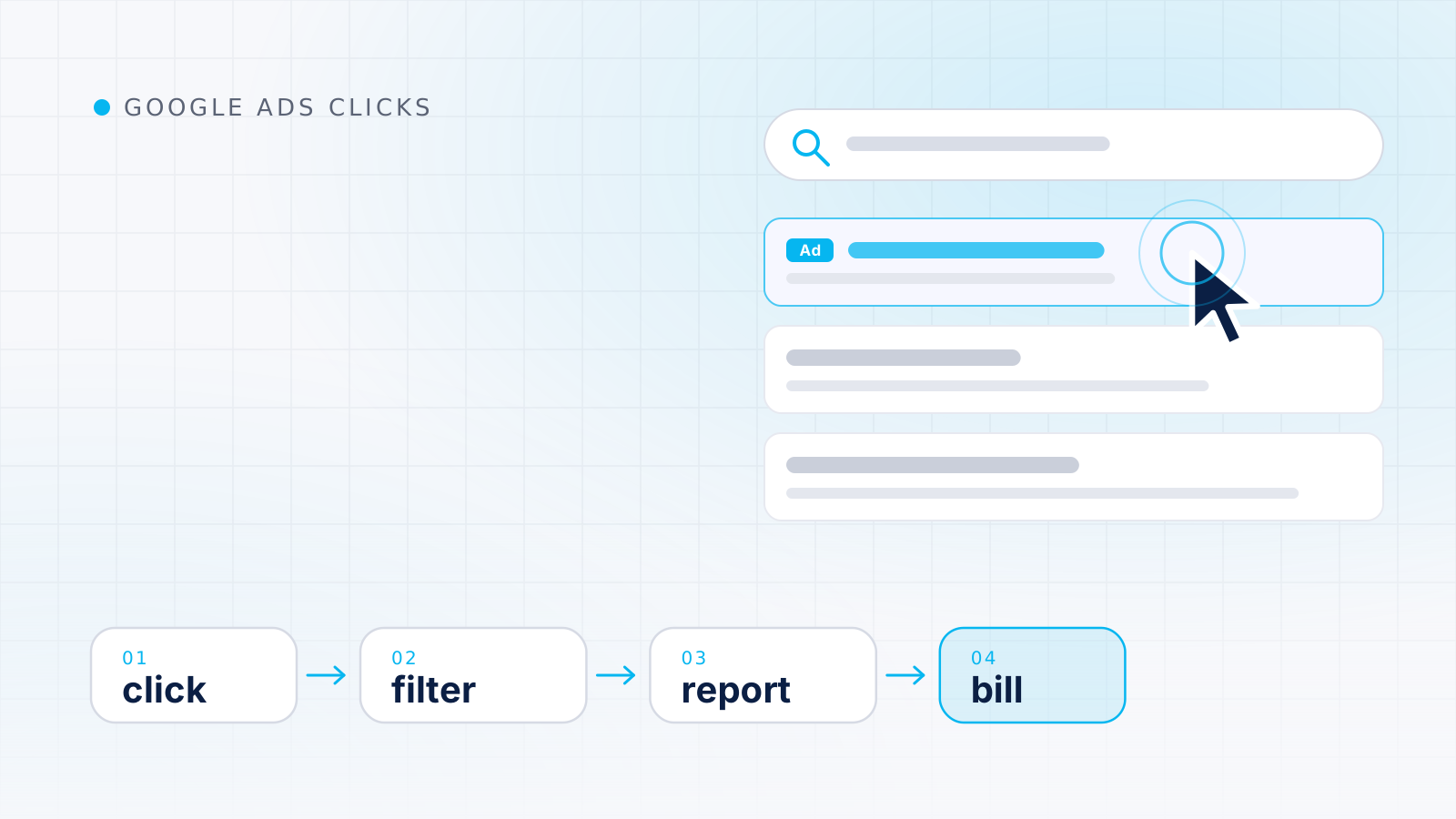
- The click is recorded. Google Ads registers the click in its own reports. What counts as a click, and which clicks are filtered out, is covered in how Google Ads counts and bills clicks.
- The landing page URL is assembled. The final URL you set is combined with any final URL suffix, the auto-tagging parameter and, if you use one, a tracking template.
- The visitor is sent on. With parallel tracking, the browser goes straight to the landing page while click measurement happens in the background.
- The page loads and the tags run. The analytics and conversion tags read the URL parameters, and the analytics tool starts a session attributed to the campaign.
- A later conversion is linked back. When the visitor converts, the stored click information lets the conversion be credited to the ad interaction. How that credit is then divided is the subject of ad attribution.
How auto-tagging and the gclid work in ad click tracking
Auto-tagging adds a parameter called GCLID, short for Google Click Identifier, to the URL people reach after clicking your ad. Google’s example turns a click to www.example.com into www.example.com/?gclid=123xyz. Google says auto-tagging is turned on by default for new accounts. It also says auto-tagging is needed for conversion tracking on all browsers, for importing Analytics key events and engagement metrics into Google Ads, and for offline conversion tracking.
Two practical points from the same page cause most auto-tagging problems:
- Redirects. If your site redirects visitors, the
gclid must survive all the way to the final landing page, or conversions cannot be tracked.
- Parameter handling. A small percentage of websites don’t allow arbitrary URL parameters and serve an error page when auto-tagging is on. The fix is for the site to accept the parameter, not to give up on tracking.
Google also notes that in Google Analytics 4, auto-tagging is prioritized over manual tagging because there is no override option. If a URL carries both a gclid and UTM tags, the auto-tagged information wins.
Tracking templates, final URL suffix and ValueTrack parameters
Many advertisers add their own tracking on top of auto-tagging. Google’s overview of tracking in Google Ads describes the fields involved:
- Final URL. The page you want people to land on.
- Tracking template. The field for tracking information. When an ad is clicked, this information is combined with the final URL to create the landing page URL. It is often used to route clicks through a third-party measurement tool.
- Final URL suffix. Parameters that are attached to the end of the landing page URL.
- Custom parameters. URL parameters you define yourself and use in tracking templates and final URLs.
These can be set at the account, campaign, ad group, keyword or sitelink level, and Google says the most specific template is used. The same page states that the tracking template URL and every redirect URL must use HTTPS, and that redirects must be server-side.
ValueTrack parameters are used to track information about the source of an ad click. Common ones include {campaignid} for the campaign that served the ad, {device} for the type of device, {matchtype} for the keyword match type, {keyword} for the matching keyword, {network} for where the click came from, and {lpurl} for the final URL. Google warns that tracking templates at the account, campaign or ad group level must include a parameter that inserts the final URL, such as {lpurl}. Without one, the landing page URL breaks.
Parallel tracking
Parallel tracking sends customers directly from your ad to your final URL while click measurement happens in the background. Without it, visitors pass through one or more redirects before the page loads, which slows their arrival. Google says parallel tracking is mandatory for Search, Shopping, Display, Video and Performance Max campaigns. The option to turn it off applies only to hotel campaigns.
For measurement, the important consequence is that a third-party tracker no longer sits in front of the landing page. Google advises checking with your click measurement provider that their system is compatible. If it is not, your click measurement could stop working. A tracker that worked under redirect-based tracking is not guaranteed to keep working unchanged.
Manual UTM tagging
UTM parameters are the standard way to label traffic for Google Analytics when there is no automatic integration, such as for email, social posts or other ad platforms. Google’s guide to campaign URL builders lists the parameters, including utm_source, utm_medium, utm_campaign, utm_id, utm_term and utm_content. Two details from that page prevent many reporting headaches:
- Parameter values are case sensitive, so
utm_source=google and utm_source=Google are different sources.
- Missing UTM parameters result in “(not set)” values in reporting.
For Google Ads clicks, auto-tagging remains the primary method. Google’s clicks and sessions troubleshooter suggests adding UTM parameters as a fallback, which is useful when a landing page system strips the gclid.
Linking Google Ads and Google Analytics
Auto-tagging puts the identifier in the URL, and linking the accounts lets the two products exchange data about it. The same troubleshooter lists the checks that matter most:
- Verify that the Google Analytics property and the Google Ads account are linked, and that data sharing is enabled for the linked property in Data manager.
- Check that the option to import data from the linked account is selected.
- Remember that data does not populate retroactively, so periods before the link was created will show gaps.
- Mark the relevant events as key events and import them as conversions. Set them as Primary only if they should inform bidding.
Why clicks and sessions differ
Clicks and sessions measure different things, and some gap between them is normal. The same Google troubleshooter gives these reasons, grouped here by direction.
| Effect |
Reasons Google lists |
| More clicks than sessions |
One visitor clicks the same ad more than once within a session; the tag fails to load; the visitor leaves before the tracking code runs; JavaScript is disabled or an opt-out tool is used; a redirect stops the analytics code from launching; the landing page is not tracked |
| More sessions than clicks |
Returning users are attributed to the original campaign; bookmarked URLs that contain a gclid record sessions but not clicks |
| Clicks filtered on one side only |
Google Ads filters certain clicks from its reports, while Analytics reports all sessions |
| Paid sessions misattributed |
Auto-tagging is off and URLs are not manually tagged; the site rewrites URLs and drops parameters; linking or import settings are incomplete |
| Unexplained “(not set)” values |
Some dimensions can show “(not set)” for clicks identified by wbraid or gbraid |
The filtering row deserves a note. Google Ads removes clicks it judges invalid, while the visits those clicks produced may still appear in analytics. How that filtering works is explained in Google Ads invalid clicks. Non-human visits can also create sessions that have nothing to do with a counted click, which is why bot traffic detection is a separate skill from click tracking.
Expecting the two numbers to match is one of the most common advertising reporting mistakes. It also means “cost per session” should never be presented as CPC, a distinction covered in measuring cost per click correctly. Watch the ratio of sessions to clicks over time, by campaign and device. A sudden change in that ratio is more informative than its absolute level.
Privacy changes that affect click identifiers
Click identifiers depend on URL parameters and cookies, and both are affected by platform and consent rules.
- iOS traffic. Google says that since Apple’s App Tracking Transparency policies took effect, it no longer sends the
gclid for iOS 14 traffic coming from ads on a handful of Google apps. In response, Google introduced new URL parameters for iOS measurement. wbraid helps attribute conversions back to campaigns and works with conversion modeling. gbraid helps measure app conversions driven by iOS campaigns and currently applies only to Search, Shopping, Display and Performance Max. Google says most advertisers need no website changes, but a small percentage may need to allow arbitrary URL parameters.
- Consent. Consent mode passes visitors’ consent choices to Google tags. When visitors deny consent, consent-aware tags don’t store cookies. In the advanced setup, the tags send cookieless pings that Google uses to model metrics. In the basic setup, the tags don’t load until the visitor interacts with the consent banner, so nothing is sent if consent is declined. Either way, some genuine paid visits will not be observed as fully tracked sessions.
- Browsers and extensions. Privacy features and blocking tools can stop tags from running or remove parameters. This is one more reason why clicks will always outnumber fully tracked sessions on some segments.
A tracking health checklist
Run through this after any site release, tag change or new campaign launch, and at least once a quarter.
| Check |
How to verify |
What a problem looks like |
| Auto-tagging is on |
Account settings in Google Ads |
Paid sessions appear as organic, direct or “(not set)” |
| Click ID survives redirects |
Load a landing page URL with a test parameter appended and confirm it remains after redirects |
Parameter disappears on the final page |
| Site accepts extra parameters |
Same test, watching for error pages |
Error or “not found” pages when parameters are present |
| Tracking templates are valid |
Template includes {lpurl} or equivalent; HTTPS throughout; server-side redirects |
Broken landing pages or missing tracking data |
| Third-party tracker supports parallel tracking |
Confirm with the provider |
Tracker counts drop while Google Ads clicks do not |
| Every landing page is tagged |
Tag diagnostics or a crawl of ad destinations |
Sessions missing for specific ad groups |
| Accounts are linked and sharing data |
Product links and Data manager settings |
No Google Ads dimensions in analytics |
| Conversions are imported as intended |
Conversion actions in Google Ads, with Primary or Secondary set deliberately |
Double counting, or bidding on the wrong action |
| UTM tags are consistent |
Lowercase values and a naming convention |
Fragmented sources and campaigns |
| Sessions-to-clicks ratio is stable |
Weekly comparison by campaign and device |
Sudden breaks in the ratio |
Once tracking passes these checks, the joined data can support proper segment-level quality review. That routine is described in ad traffic analysis.
Key takeaways
- Ad click tracking is a chain: click, URL assembly, landing page, tags, session, then conversion. Information can be lost at every link.
- Auto-tagging adds the
gclid, takes priority over UTM tags in Google Analytics 4 and must survive every redirect.
- Tracking templates need a final URL insertion parameter, HTTPS and server-side redirects, and any third-party tracker must support parallel tracking.
- Clicks and sessions differ for documented reasons. Monitor the ratio by segment rather than expecting a match.
- iOS rules, consent choices and browser privacy features reduce what can be observed directly, so leave room for gaps in click-level data.